
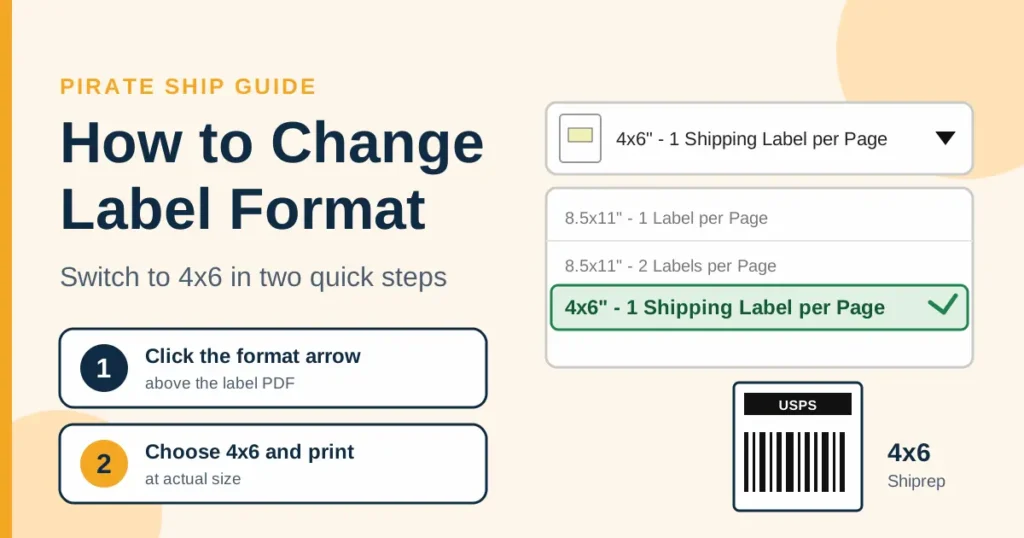
Knowing how to change label format on Pirate Ship saves you from labels that print too small or in the wrong size. You buy a label, hit print, and it comes out wrong. Usually, the label format is the cause, not your printer.
Quick answer: To change the label format on Pirate Ship, open your label page and click the arrow on the label format bar above the PDF preview. Next, choose the 4×6 format and print at actual size. To change your default label size, go to Settings, then General Settings, before you buy the label.
At Shiprep, our warehouse prints on thermal rolls every day. As a result, we see wrong-size labels often, and most take a minute to fix once the setting is right.
What “label format” means on Pirate Ship
On Pirate Ship, the label format is simply the label size. In plain terms, you choose between two sizes:
- 4×6 inches: the standard shipping label size. It works with regular printers and 4×6 thermal printers.
- 2×7 inches: a smaller label made for compact printers such as some Dymo and Brother models.
Meanwhile, the size you pick applies to every label you buy afterward. Therefore, checking it before you ship saves both time and label stock.
How to change label format on Pirate Ship
Menu names can shift when Pirate Ship updates its site. However, the steps below match Pirate Ship’s own help article at the time of writing.
Step 1: Open General Settings
Log in to Pirate Ship on your computer. Then open Settings and click General Settings.
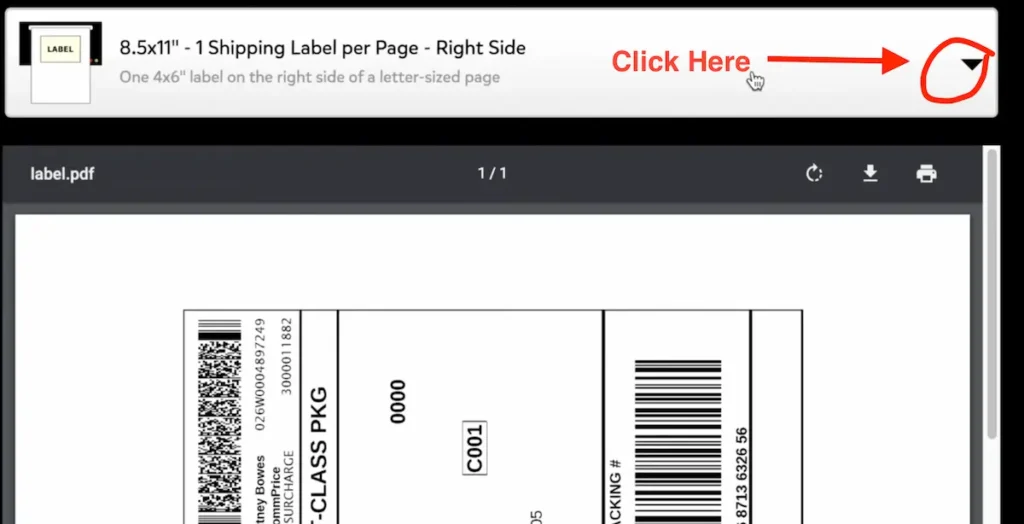
Step 2: Choose your label size
In General Settings, find the label size option. Select 4×6 for a standard or 4×6 thermal printer, or 2×7 for a small label printer. Then save your choice.
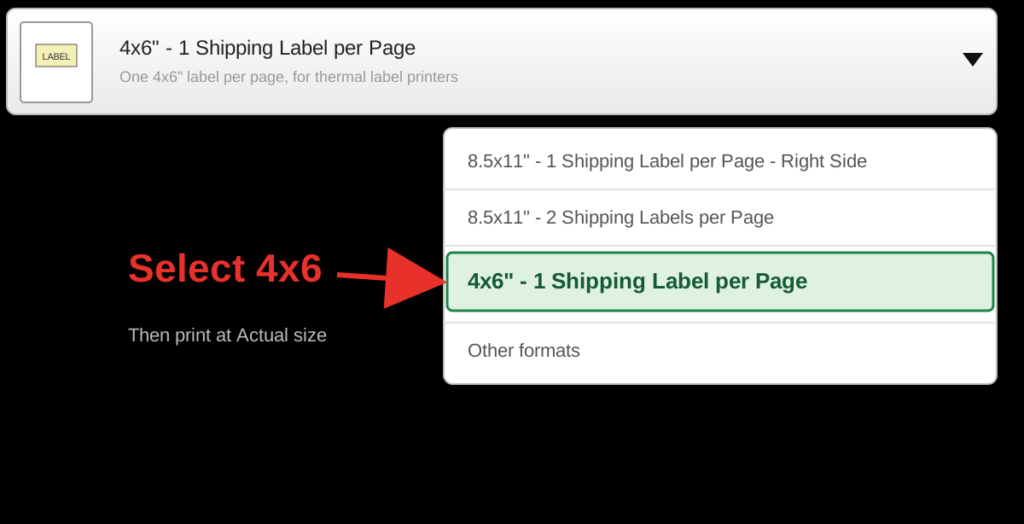
Tip: Make this change before you buy your next label. Pirate Ship applies the new size to future labels only.
Already bought a label in the wrong size?
Unfortunately, you cannot resize a label after you buy it. However, the fix is simple:
- Request a refund for the wrong-size label.
- Change the label size in Settings, as shown above.
- Create the label again. The Duplicate Shipment button on the shipment page copies the original details, so you do not need to retype them.
4×6 or 2×7: Which Pirate Ship label format should you choose?
Both sizes work. However, each one has trade-offs.
- 2×7 works only for USPS. UPS labels come in 4×6 only, so UPS services will not show when you click Get Rates.
- 2×7 skips some features. Rubber stamps, packing lists, gift messages, and international or customs forms are not available at this size.
- 2×7 labels are PDF only. The ZPL format is not offered.
Our recommendation: Use 4×6 unless you ship only USPS domestic orders on a small label printer. It works with more carriers and keeps every feature available. For the full picture, read our guide to the 4×6 thermal shipping label format.
Print settings that keep Pirate Ship labels from printing too small
Changing the format is only half the job. In addition, your printer settings must agree with it. Otherwise, the label can still print small or cut off.
- Pick your label printer as the target in the print window.
- Set the paper size to match your label size: 4×6 or 2×7.
- Choose Actual size (100% scale), not Fit to page.
- Print one label first, and check that it fills the sticker before you print the rest.
Tired of fighting printer settings? Shiprep prints, labels and ships your orders from our Bensalem, PA warehouse, so you can skip the setup. See our warehouse prep and fulfillment services.
Is your Pirate Ship label format correct?
Finally, before you ship, run through this quick checklist.
- Size: matches the setting you picked, 4×6 or 2×7
- Labels per page: one
- Barcode: sharp and not stretched
- Layout: the label fills the whole sticker
Why thermal labels work better for Pirate Ship orders
First, thermal printing uses heat instead of ink, so the barcode stays sharp. Moreover, it holds up through rain, sunlight, and rough handling in transit. If you also sell on Amazon, our guide on how to print FNSKU labels covers the label format for FBA.
Let a prep center print and apply labels for you
If labeling eats your day, Shiprep can take it over. Our team handles order picking and packing, labeling and tagging, packaging and bundling, and returns processing. We also support eBay, Amazon, Walmart, Temu, Target and TikTok. There is no minimum order quantity, no long-term contract, and no advance payment, so you can start with a small batch. Get a quote to see how it works.
Frequently asked questions about Pirate Ship label format
How do I change label format on Pirate Ship? Go to Settings, then General Settings, and select 4×6 or 2×7 as your label size. Set it before you buy your label.
Can I change the size of a label I already bought? No. Request a refund for the label, change the size in Settings, and create it again. The Duplicate Shipment button copies the details for you.
Why are UPS rates missing on Pirate Ship? You probably have 2×7 selected. UPS labels come in 4×6 only, so switch the size to 4×6 in General Settings.
Which label size should I use for a thermal printer? Use 4×6 for a 4×6 thermal printer. Use 2×7 only if your printer is a small model, such as certain Dymo or Brother printers.
Why does my Pirate Ship label print too small? The label size or your printer paper size usually does not match. Set both to the same size, and print at Actual size.
Does Pirate Ship support ZPL labels? Not at 2×7. Labels at that size are PDF only.
Print Once, Ship Without Reprints
Get the Pirate Ship label format right at the start, and everything downstream runs smoother. Choose your size in General Settings, print at actual size, and check one label first. If a label still looks off, send it to the Shiprep team, and we will confirm the format with you.
For more details, see Pirate Ship’s help article on changing your label size.