
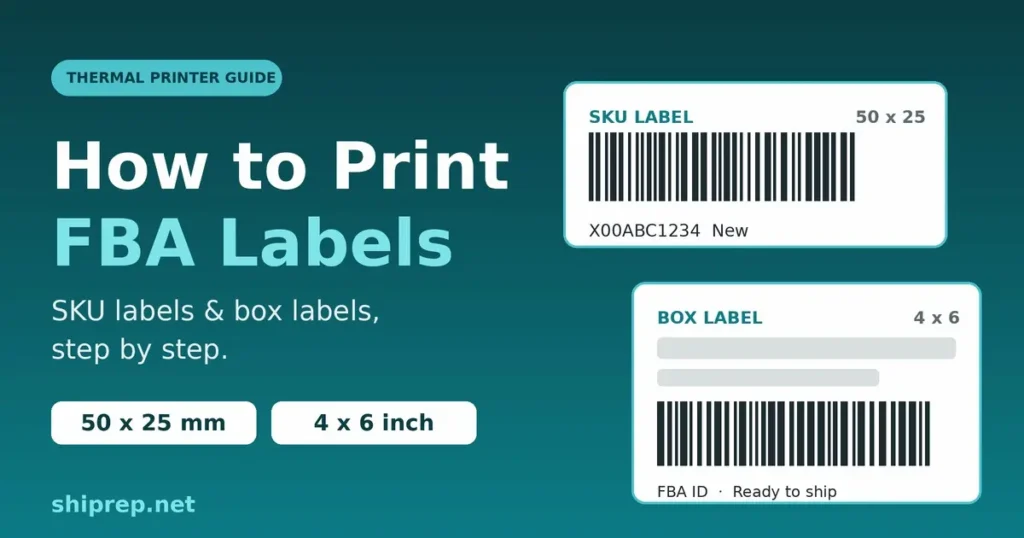
Knowing how to print FBA labels correctly can save you from delayed check-ins and relabeling fees. A wrong label size is one of the most common reasons FBA shipments get held up, so follow these two quick steps to print both SKU labels and box labels on a thermal printer.
Step 1: Print SKU (product) labels
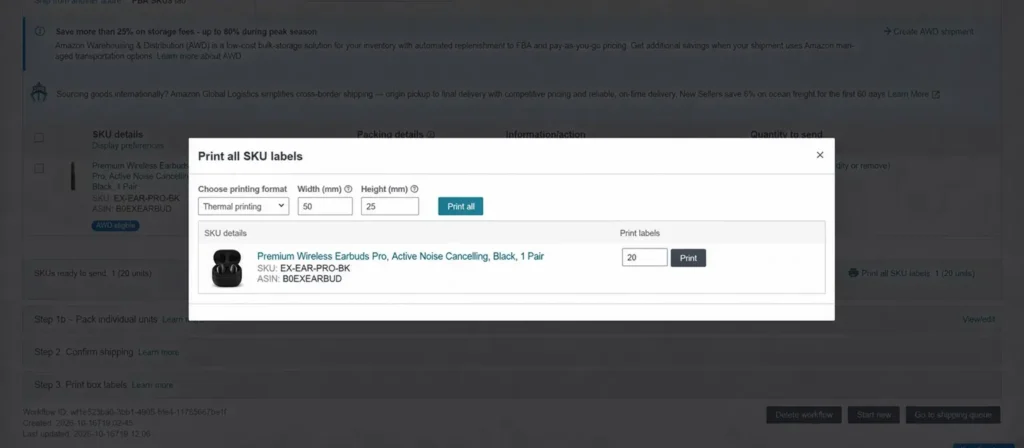
- In the Send to Amazon workflow, click Print all SKU labels.
- Under Choose printing format, select Thermal printing.
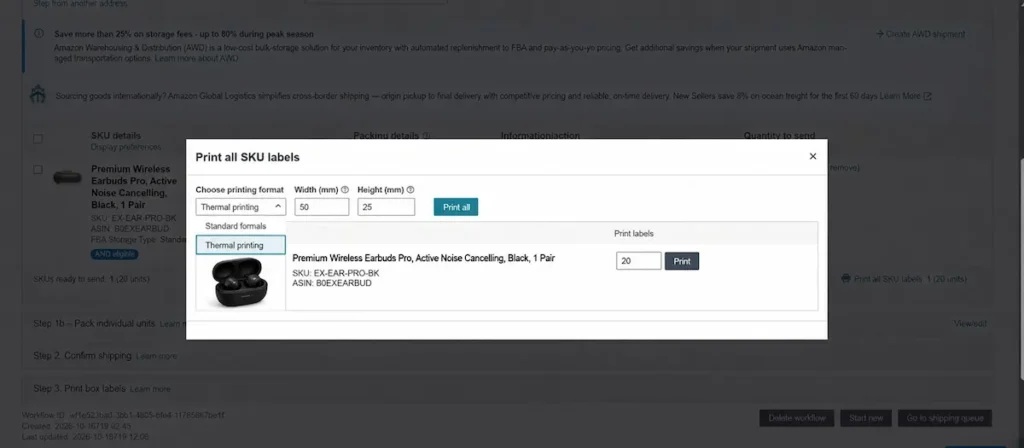
- Set the Width to 50 mm and the Height to 25 mm.
- Enter the number of labels (it must match your units, e.g., 20 units = 20 labels).
- Click Print for one SKU, or Print all for every SKU.
Step 2: Print box labels
- Go to Step 3: Print box labels and find your shipment.
- Under Print box and shipping labels, open the dropdown. The default is often 8.5″ x 5.5″ (US Letter), which thermal printers can’t print on.
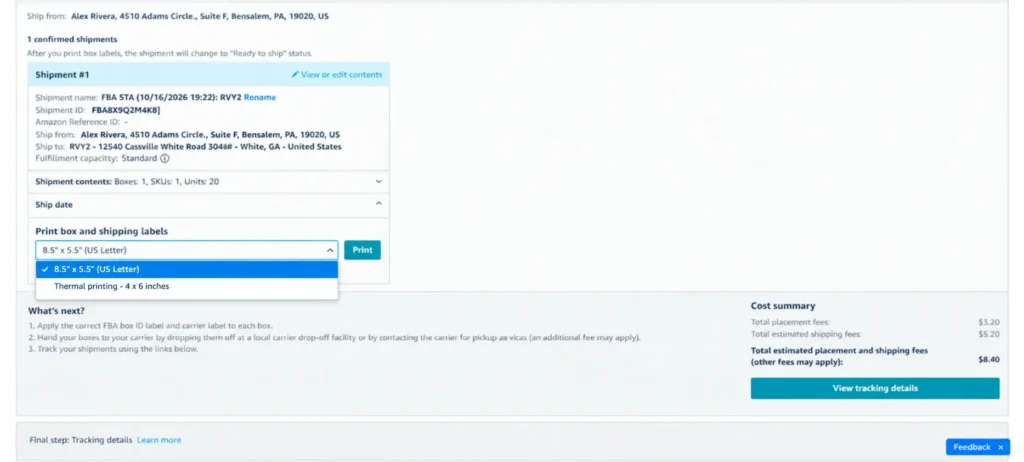
- Select Thermal printing – 4 x 6 inches and click Print.
- Print one set of labels for each box.
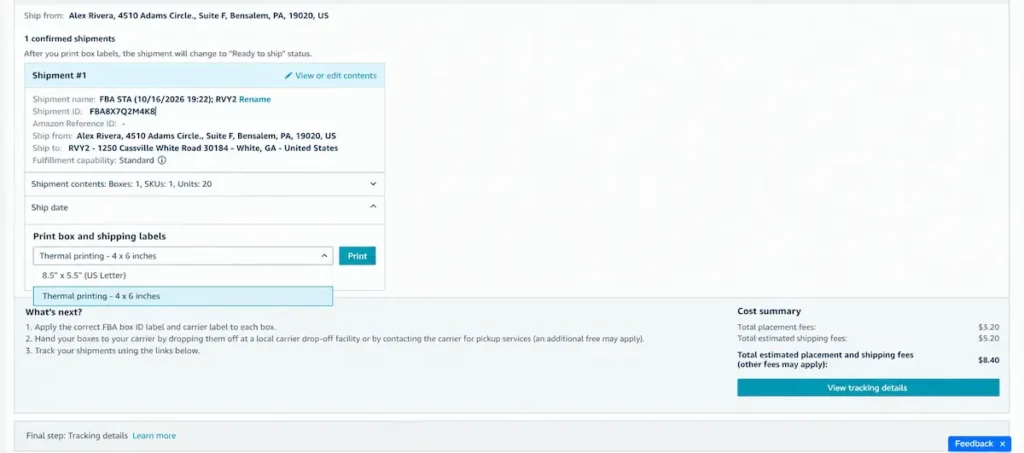
After printing, the shipment status changes to Ready to ship. Stick the FBA box ID label and carrier label on every box, then hand the boxes to your carrier.
Quick summary
- SKU label: Thermal printing, 50 x 25 mm
- Box label: Thermal printing, 4 x 6 inches
Now that you know how to print FBA labels, your shipment is ready for check-in. If you would rather skip the printing and sticking, shiprep.net handles labeling and prep for Amazon sellers through its FBA labeling service. For Amazon’s official rules, read the FBA label requirements in Seller Central Help.