
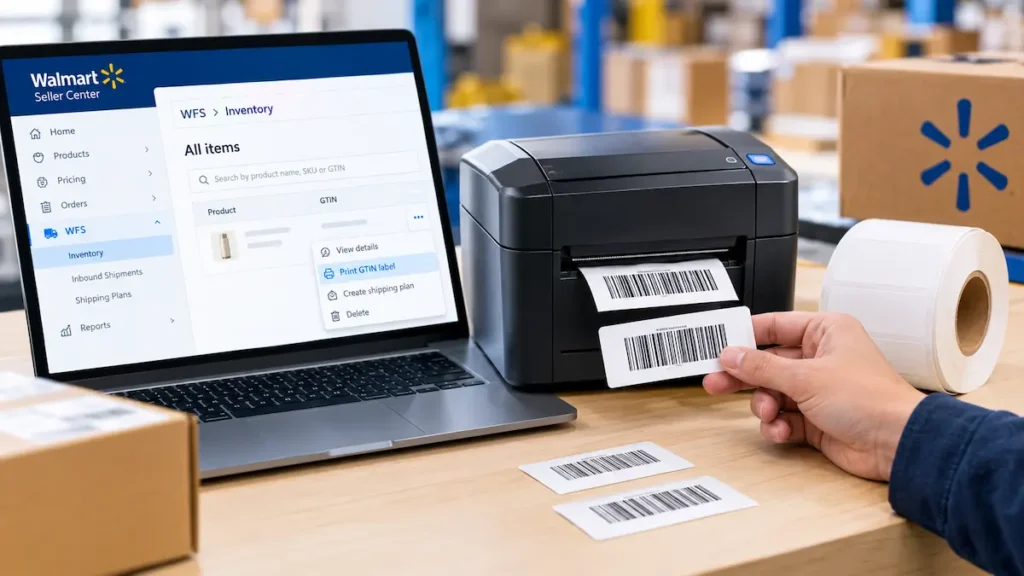
Quick answer: To print GTIN/UPC labels for Walmart WFS correctly, go to WFS → Inventory in Seller Center, click the three-dot actions menu next to your item, select Print GTIN label, and choose the 2×1 (50mm x 25mm) thermal paper format. Print at 100% scale with no resizing, and scan one test label before printing the full batch.
Our warehouse uses thermal paper format when we print GTIN/UPC labels for Walmart WFS, so Walmart’s scanners can easily read your barcodes. Please see below how to choose the right format when printing these labels on Walmart Seller Center.
If you’re also prepping inventory for Amazon, see our guide to FNSKU labeling requirements as well.
Step 1: Open WFS Inventory and Find Your Item
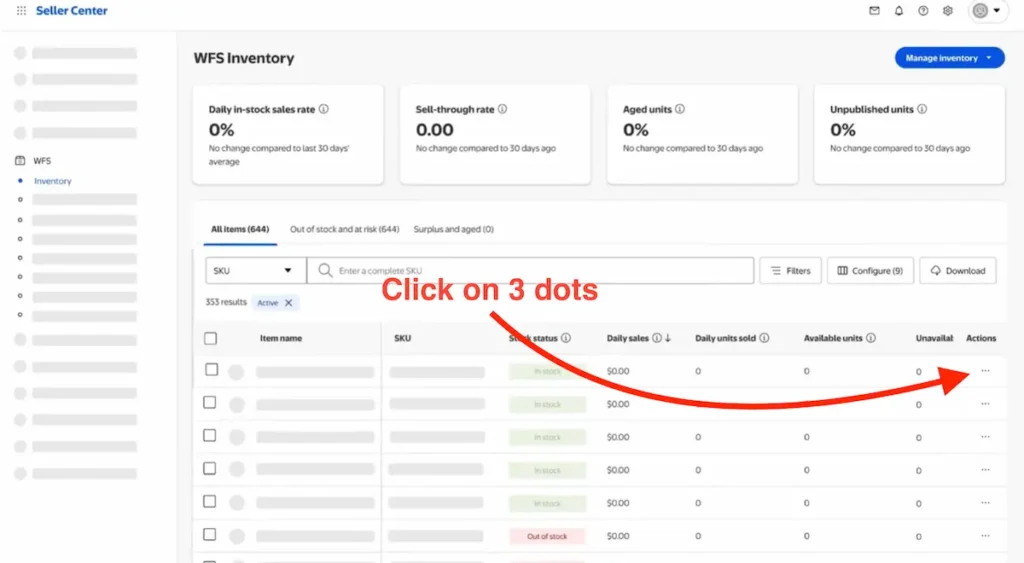
In Walmart Seller Center, go to WFS → Inventory. Find your product in the “All items” list, then click the three-dot actions menu at the end of that item’s row.
Step 2: Print the GTIN Label in the Right Format
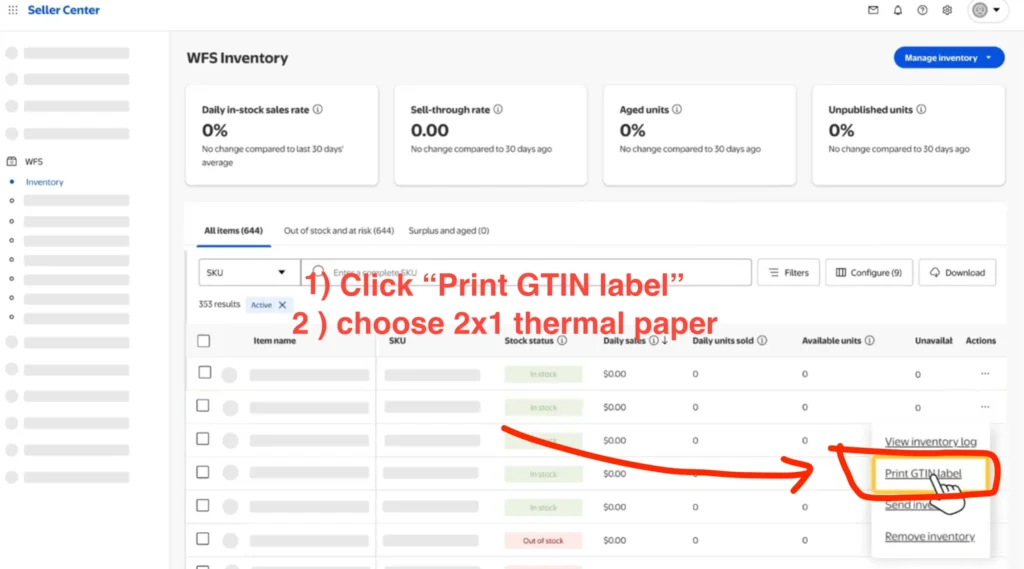
From the actions menu, click Print GTIN label. When the print format options appear, select 2×1 (50mm x 25mm) thermal paper to match standard thermal label printers. This is the format that matches the barcode size Walmart’s scanners expect.
Common Mistakes When Printing WFS Labels
- Printing at the wrong scale. Browser or printer settings that auto-scale “to fit page” can shrink or stretch the barcode, making it unreadable.
- Choosing the wrong paper format. Selecting a sheet format when your printer uses thermal rolls (or vice versa) usually prints at the wrong size.
- Reusing an old label template. Always generate labels fresh from the current inventory screen rather than reusing a saved file.
- Skipping a test scan. Print one label and scan it with a barcode scanner or scanner app before printing the full batch.
FAQs
What label format does Walmart WFS require?
Walmart’s GTIN labels print best in the 2×1 (50mm x 25mm) thermal paper format, accessed through the Print GTIN label option in WFS Inventory.
Where do I print GTIN labels in Walmart Seller Center?
Go to WFS → Inventory, click the three-dot actions menu next to your item, and select Print GTIN label.
What happens if a GTIN label doesn’t scan at a Walmart fulfillment center?
Walmart applies its unplanned prep process to correct it, which costs more than planned prep and can delay how quickly the inventory is available to sell.
Do I need a specific printer for WFS labels?
A standard thermal label printer works best for the 2×1 format. Make sure the print scale is set to 100% with no auto-resizing.
Helpful resources
For Walmart’s official label guide, see WFS shipping plans: Print labels.